
Description
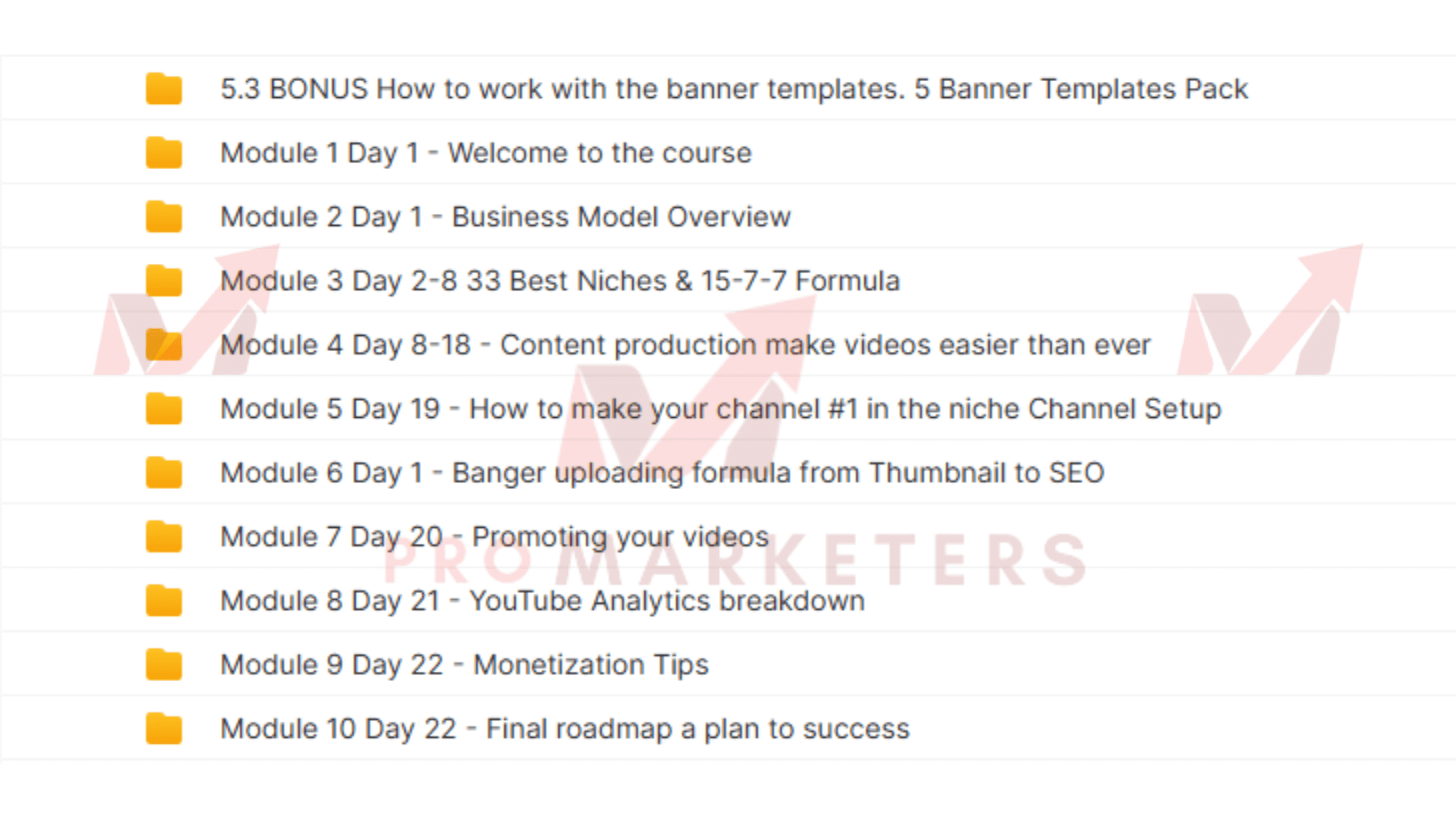
You’re thinking about helping your child start a YouTube channel, but you’re unsure where to begin. The “30 Day YouTube Kids Creator” program breaks the process down into manageable steps, from setting up the channel to mastering basic editing skills. You’ll also learn about the best tools for young creators and how to keep their experience safe. If you’re curious about how to guide your child through this creative journey, there’s more to explore.
Key Takeaways
- Establish a daily routine with specific times for scripting, filming, and editing to build consistent content creation habits.
- Plan 30 kid-friendly video ideas in advance, focusing on trends, crafts, games, and educational topics.
- Use simple equipment like a smartphone, tripod, and free editing apps to produce high-quality, engaging videos.
- Involve parental supervision for content review, privacy checks, and safe posting using YouTube Kids’ controls.
- Track progress and adjust the plan weekly to stay motivated, creative, and organized throughout the 30 days.
Setting Up Your Child’s YouTube Channel
Launching your child’s YouTube channel starts with a few essential steps to guarantee both safety and creativity. First, create a Google account for your child using your supervision. This lets you manage privacy settings and monitor activity. Set the account’s birthdate accurately to activate YouTube Kids or supervised features. Choose a unique, easy-to-remember channel name that reflects your child’s interests but doesn’t reveal personal details.
Next, customize the channel’s profile with a fun icon and banner image—something eye-catching and age-appropriate. Write a brief channel description outlining what viewers can expect, using friendly language that’s inviting but safe. Enable privacy settings to review comments and control who can interact with your child’s content. Discuss guidelines with your child about what’s appropriate to share online, emphasizing privacy and kindness. By taking these steps, you’ll lay a strong foundation for a secure and inspiring YouTube journey together.
Essential Equipment and Tools for Beginners
A solid foundation starts with the right gear. To kick off your child’s YouTube journey, you don’t need fancy equipment, but a few basics will make a big difference. Start with a smartphone or a simple camera—most modern phones shoot high-quality video. Use a small tripod to keep things steady, avoiding shaky footage. Good audio matters, so consider an affordable clip-on microphone; it’ll help voices sound clear and professional.
Lighting can transform your videos. Natural light near a window works well, but if you’re filming indoors or after sunset, a ring light or LED panel is a smart, budget-friendly option. For editing, free apps like iMovie (iOS) or CapCut (Android/iOS) are user-friendly and powerful enough for beginners. Finally, keep extra storage—either cloud-based or physical memory cards—on hand so you never miss a moment. With these tools, you’re ready to create engaging, high-quality content.
Brainstorming Video Ideas Kids Will Love
Whether you’re just starting or looking to refresh your channel, coming up with video ideas that truly excite kids is key to building a loyal audience. Start by thinking about what kids love—bright colors, fun characters, silly challenges, and interactive games. Immerse yourself in trending topics like popular cartoons, toys, or viral challenges, but always add your unique twist so your content stands out.
Ask yourself what made you laugh or smile as a child. Use that inspiration to brainstorm themes like DIY crafts, animated stories, or science experiments with simple explanations. Watch what’s popular on YouTube Kids, and pay attention to the comments for direct feedback from your viewers.
Don’t forget to think about age-appropriateness and keep things simple, energetic, and visually engaging. Jot down every idea, no matter how wild—it’s often the unexpected concepts that become favorites with your audience.
Daily Content Creation Plan
Mapping out a daily content creation plan sets you up for consistent uploads and keeps your channel top-of-mind for young viewers. Start by choosing a set time each day to work on your videos—routine helps you stay organized and motivated. Outline your week in advance, assigning each day a specific task. For example, dedicate Mondays to scripting, Tuesdays to filming, and the rest of the week to tasks like gathering props, setting up backgrounds, or practicing your on-camera delivery.
Keep your goals realistic. You don’t have to produce a finished video every day. Instead, break the process into manageable steps, focusing on steady progress. Use a calendar or planner to track your tasks and deadlines. Remember to leave some time for creativity and fun—kids’ videos should feel energetic and genuine. By sticking to your plan, you’ll build momentum, reduce stress, and create engaging content that keeps your audience coming back.
Editing Basics for Young Creators
Once you’ve recorded your video and followed your content plan, it’s time to bring your footage to life through editing. Editing helps your story make sense, adds fun effects, and keeps viewers interested. Start by choosing simple editing software like iMovie, Windows Video Editor, or CapCut. Import your clips, then trim out mistakes or boring parts. Arrange your scenes in the right order so your video flows smoothly.
Add music or sound effects to match your video’s mood, but make sure they’re not too loud or distracting. Use text or stickers for titles, names, or fun messages. Try adding simple transitions between scenes, such as fades or slides, to keep your video looking professional. Watch your video from start to finish before saving. Fix any awkward pauses or errors you spot. With practice, editing gets easier and your videos will look better every time you create.
Safe Posting and Parental Controls
How can you make certain your videos are safe to share online? Start by avoiding personal details in your videos—don’t include your real name, address, school name, or anything that could identify your location. Stick to using first names or nicknames and film in areas that don’t reveal private information.
Before you upload, ask a parent or guardian to review your video. They can help spot anything you might’ve missed and make certain your content follows family rules. Use YouTube Kids’ parental controls to limit who can see your videos. Set your channel to private or restrict comments to prevent unwanted messages.
Stay alert for anything that makes you uncomfortable—tell a trusted adult right away. Regularly review your privacy settings with your parents to make certain they’re still strong. By following these steps, you’ll create a safe, enjoyable space for sharing your creativity online.
Celebrating Progress and Sharing Success
As you move through your 30-day journey as a YouTube Kids creator, it’s important to pause and recognize how far you’ve come. Track milestones like your first video upload, your first positive comment, or even a noticeable improvement in your editing skills. These achievements, big or small, show your dedication and growth.
Don’t hesitate to share your progress with your audience. Let your viewers know about the journey—kids love to see how things are made and how creators improve over time. Share fun stats, like how many videos you’ve posted or creative challenges you’ve overcome. This transparency builds trust and keeps your young audience engaged.
You can also celebrate by thanking your viewers or creating a special video marking the end of your 30 days. This not only motivates you but also inspires others to start their own creative journeys.
Conclusion
You’ve just completed the 30 Day YouTube Kids Creator journey! By setting up your channel, mastering basic tools, and brainstorming awesome ideas, you’re now ready to create content kids will love. Remember, editing and safety go hand in hand, so always use parental controls and share your progress with family. Keep having fun, keep learning, and don’t forget to celebrate every milestone. Your creative adventure is just beginning—now go share your voice with the world!


